
The Microsoft Azure connector lets Phoenix Security collect container image and runtime data from Azure, with optional team synchronisation from Microsoft Entra ID groups.
1. Introduction
The Microsoft Azure connector connects Phoenix Security to Azure using a customer-managed Microsoft Entra application. After the connection is created, individual capabilities can be enabled for container runtime data, container image data and Entra ID team synchronisation.
1.1 What It Does
- Authenticates as a customer-owned Microsoft Entra service principal.
- Discovers Azure subscriptions and resources that the service principal is authorised to read.
- Supports separate, independently enabled capabilities for Azure Kubernetes Service, Azure Container Apps and Azure Container Registry.
- Can optionally synchronise Phoenix team membership from Microsoft Entra ID groups.
- Lets each capability be validated, enabled, renamed or removed without deleting the underlying Azure connection.
2. Requirements
- A Microsoft Entra tenant and permission to register an application.
- The Directory or tenant ID and Application or client ID.
- A client secret stored in an approved secrets manager.
- Permission to create the Azure role assignments required for each subscription and capability.
- The relevant Azure services and resources enabled in the subscriptions Phoenix Security will read.
- Permission in Phoenix Security to create and manage connectors.
2.1 Permissions by Capability
Grant only the permissions required for the capabilities you plan to enable:
- Base Microsoft Azure connection: Valid Tenant ID, Client ID and Client Secret. This confirms that Phoenix Security can authenticate with Azure.
- Container Apps runtime: Assign Reader on each Azure subscription Phoenix Security needs to import.
- Kubernetes Service runtime: Assign Reader and Security Reader on each Azure subscription Phoenix Security needs to import.
- Container Registry images: Assign Reader for registry discovery and data-plane read access to the Azure Container Registries Phoenix Security needs to import.
- Team sync from Entra ID groups: Add the Microsoft Graph application permissions GroupMember.Read.All and User.Read.All, then grant tenant admin consent.
Azure uses separate permission systems for subscription resources, container registries and Microsoft Graph. This is why the Azure connector lists more permissions than the AWS connector. You do not need every permission unless you enable every capability.
Keep all access read-only and scope role assignments to only the subscriptions and registries Phoenix Security needs to read.
2.2 Least-Privilege Scope
The Microsoft Entra application must have sufficient read access to the Azure subscriptions and resources used by each enabled capability. The exact Azure role assignments depend on your organisation’s Azure configuration.
3. Register the Microsoft Entra Application
- Open the Microsoft Entra admin centre and go to App registrations.
- Create a new registration.
- Use a clear name such as Phoenix Security Azure Connector.
- Select Accounts in this organisational directory only.
- Complete the registration and copy the Directory or tenant ID and Application or client ID.
3.1 Create the Client Secret
- Open Certificates and secrets for the application.
- Create a client secret using your organisation’s approved credential lifetime and rotation standard.
- Copy the secret value once and place it in an approved secrets manager.
- Record the expiry date and owner without recording the secret itself.
The connector authenticates with the client secret. Never place the tenant ID, client ID or client secret in article screenshots.
4. Assign Azure Roles & Optional Graph Permissions
- Open the first Azure subscription that Phoenix Security must read.
- Open Access control IAM and select Add role assignment.
- Assign the roles required by the capabilities listed in section 2.1.
- Confirm that the selected member is the enterprise application or service principal created in section 3.
- Repeat the assignments for each additional subscription.
- If Azure Container Registry inventory is required, grant data-plane read access to each included registry.
- If Entra ID team synchronisation is required, add GroupMember.Read.All and User.Read.All as Microsoft Graph application permissions and grant tenant admin consent.
- Allow time for Azure RBAC and admin-consent propagation before validating the connector.
5. Configure Phoenix Security
- In Phoenix Security, open Integrations > Connectors.
- Select Microsoft Azure.

- Enter a recognisable connector name.
- Enter the tenant ID, client ID and client secret.
- Select Create. Phoenix Security verifies the Tenant ID, Client ID and Client Secret before creating the connector.
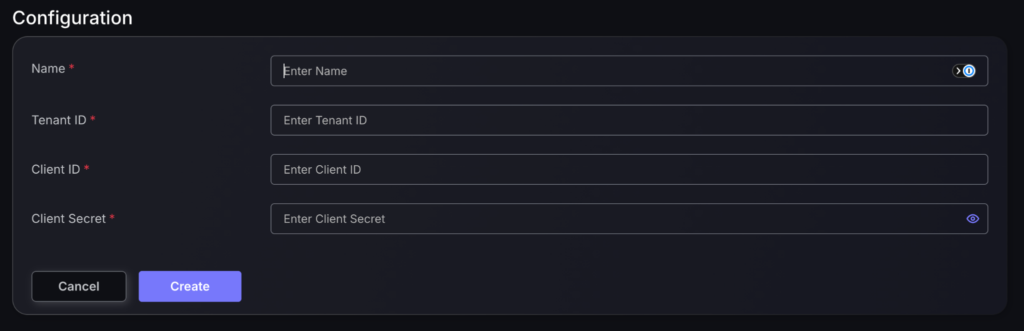
5.1 Add & Enable Capabilities
After creating the connector, open it from the Connected connectors list. Capabilities are added and managed separately from the base connection.
- Select an available capability.
- Keep Enabled on if Phoenix Security should collect or synchronise that data.
- Keep the default name or enter a name that makes the scope clear.
- Select Save. Phoenix Security validates the capability-specific access before using it.
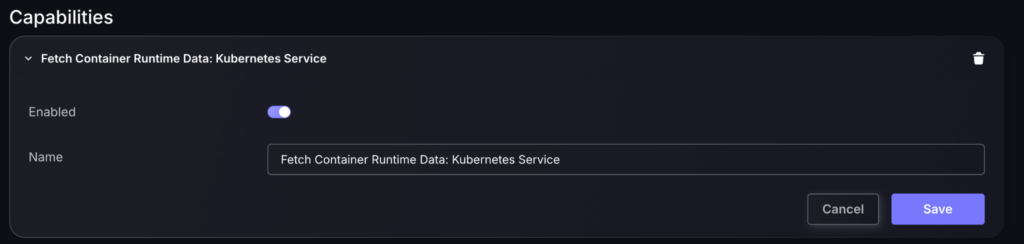
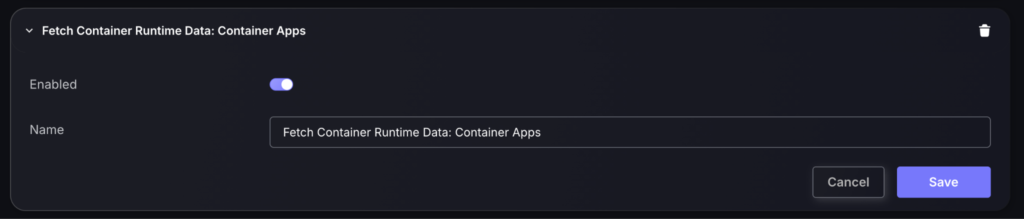
The Azure connector can also expose additional capabilities for Azure Container Registry inventory and Entra ID team synchronisation.

5.2 Capability Outcomes
- Kubernetes Service: imports running-container context for Azure Kubernetes Service and uses Defender for Cloud security resource data where required.
- Container Apps: imports Azure Container Apps runtime inventory.
- Container Registry: imports repository, image digest and manifest inventory from authorised Azure Container Registries.
- Team sync from Entra ID groups: synchronises Phoenix team membership from selected Microsoft Entra ID groups.
6. Verify the Connector
- Confirm that the Microsoft Azure connector appears under the Connected view.
- Confirm that every required capability is present and enabled.
- Confirm that every intended subscription is accessible.
- For runtime capabilities, confirm that a known workload appears with the correct subscription and resource context.
- For Container Registry, confirm that a known repository and image digest appear.
- For team synchronisation, confirm that an Entra group can be found before linking it to a Phoenix team.
- Record the last successful synchronisation time
7. Keeping Container Information Current
Each time the enabled capabilities run, Phoenix Security refreshes the container images and runtime workloads it can read from Azure. When a fixed image is pushed to Azure Container Registry or deployed to Azure Container Apps or Azure Kubernetes Service, Phoenix can discover the updated image and runtime relationship during a subsequent connector run.
The connector does not scan images or determine whether a vulnerability has been fixed. Vulnerability status is updated from the relevant scanner or assessment source. The Azure connector helps Phoenix keep the image inventory and deployment context current.
