
Rapid7 Credentials
In order to integrate with Rapid7 InsightVM you’ll need the credentials (username and password) for a user with access to the Site(s) that you want to monitor through Phoenix Security. It’s recommended that you create a user specifically for API access, and don’t activate MFA for its account.
Create a Rapid7 Integration
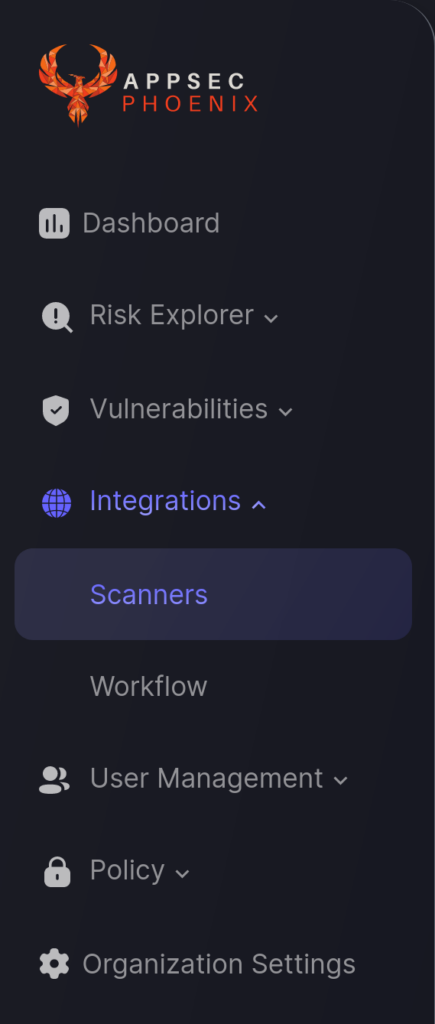
- On the sidebar menu, navigate to the Scanners tab in the Integrations section.
- Click on the “Add Scanner Integration” button on the right side of the page.
- In the first step, select Rapid7 Platform from the list of available integrations and enter a name for this scanner integration.
On the second step you need to provide the required details for the scanner integration. In the case of Rapid7 InsightVM you need to provide.
For the Server URL below you need to identify the region for the domain: https://{region}.api.insight.rapid7.com/
The {region} in the URL above needs to be replaced with your region for the Insight Platform. You can normally see the region code at the start of your Rapd7 UI URL. It would be form this list:
| Code | Region |
|---|---|
| us | United States (us-east-1) |
| us2 | United States (us-east-2) |
| us3 | United States (us-west-2) |
| eu | Europe |
| ca | Canada |
| au | Australia |
| ap | Japan |
| aps2 | India |
| me1 | Middle East |
- Server URL: Enter the URL for your InsightVM instance API
- Username: Enter the Username of the user obtained using the instructions at the start of this article.
- Password: Enter the Password of the user obtained using the instructions at the start of this article.
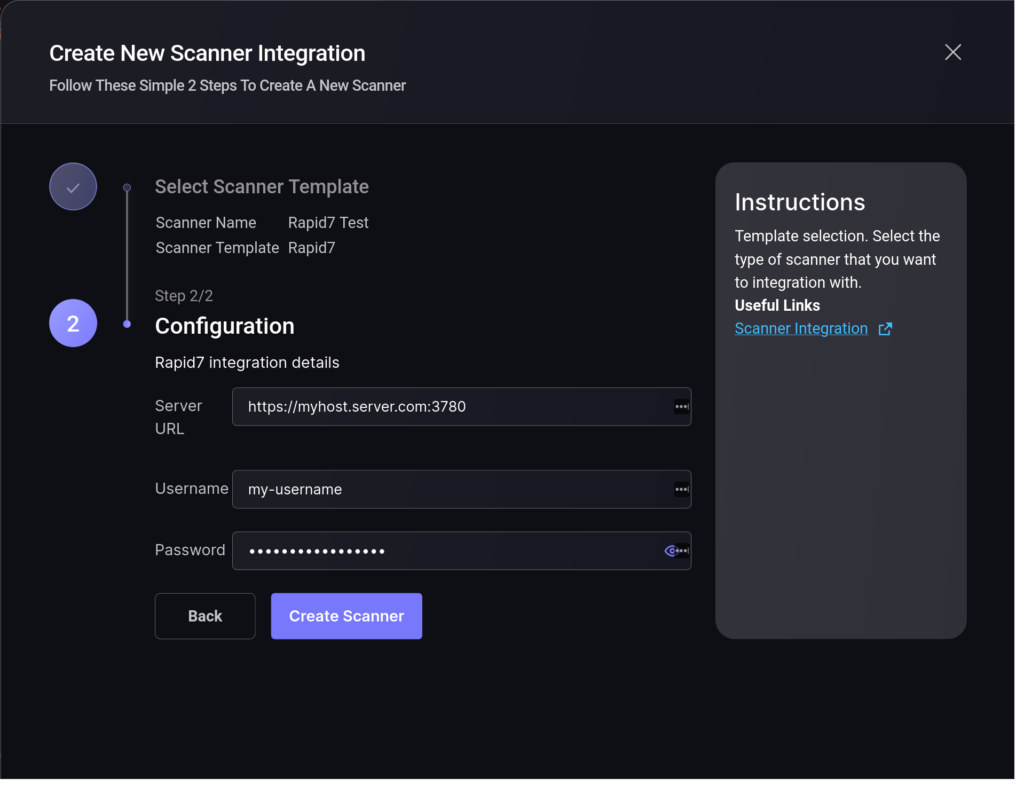
5. Click on the ‘Create Scanner’ button
After the scanner integration is created the new entry appears on the Scanners list page.
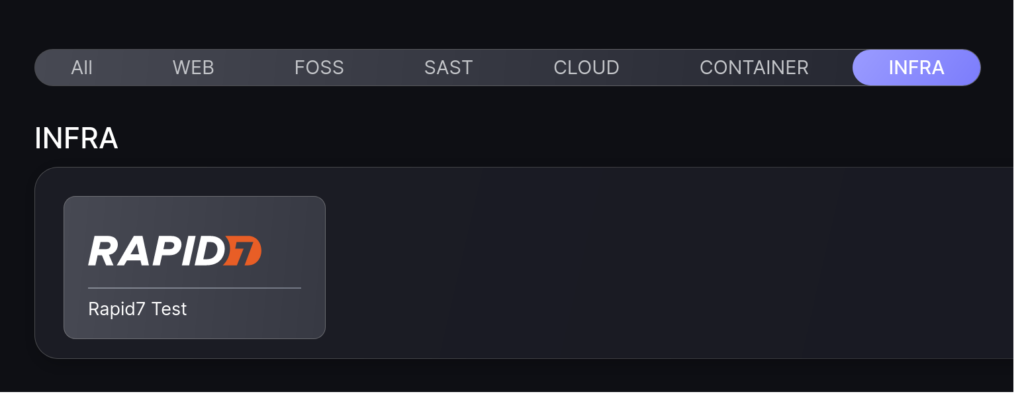
From this point onwards you will be able to select this scanner integration when creating environment Sites.
