
Use the Phoenix DAST Scanner integration to configure web targets and monitor their scheduled scan status from Phoenix.
Only scan systems that your organisation owns or is explicitly authorised to test.
1. Requirements
Before creating the integration, ensure that:
- You have permission in Phoenix to create scanner integrations.
- You have permission from the target owner to perform active security testing.
- You know the target that you want to scan.
- For an authenticated target, you have a valid bearer or JWT token.
The current form provides an optional Auth Token (Bearer) field. It does not provide controls for cookie, basic or client-certificate authentication.
2. Create the scanner integration
- In Phoenix, open Integrations > Scanners.
- Go to the WEB section.

- Select Phoenix DAST Scanner.
- Keep the default scanner name or enter a descriptive name.
- Expand “Target 1” and configure the target.
- Select Create Scanner.
3. Configure a target
Each target configuration contains the following fields.
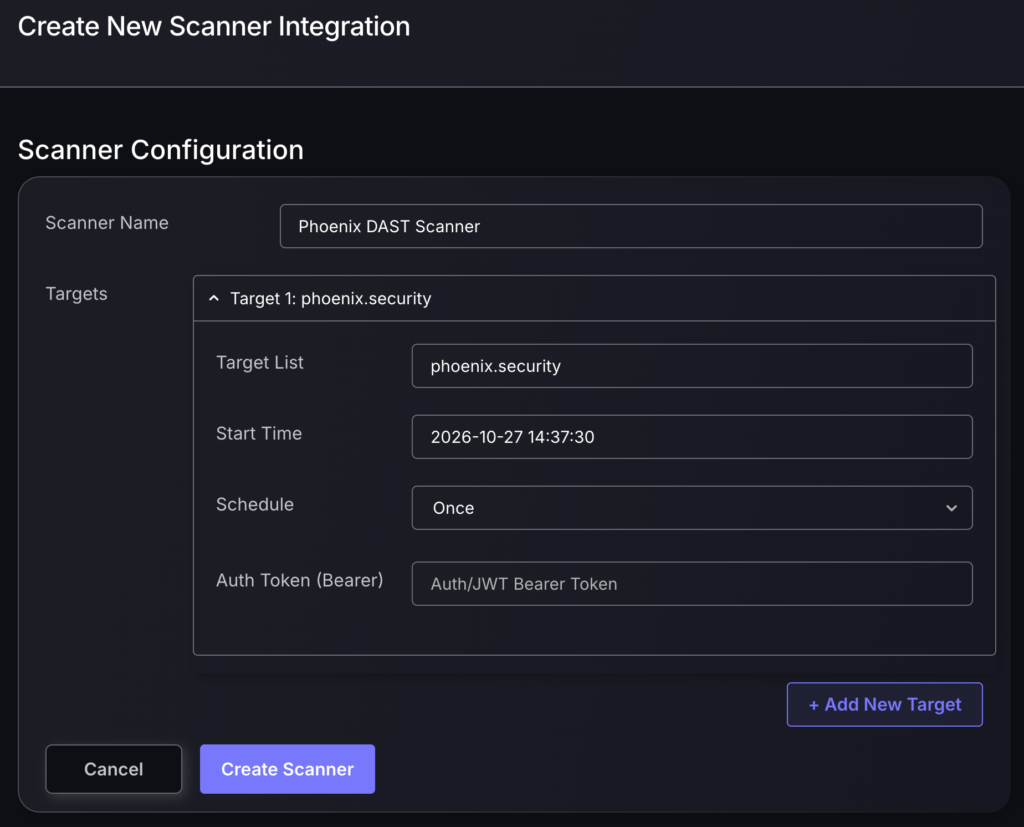
3.1 Target List
Enter the target that Phoenix should scan. Only add a target that you are authorised to scan.
3.2 Start Time
Choose the date and time when Phoenix should start the scan.
Confirm that the selected time and time zone are appropriate before creating the scanner.
3.3 Schedule
Choose a schedule from the options available in the form.
3.4 Auth Token (Bearer)
For an authenticated target, enter the required bearer or JWT token. Leave this field empty when the target does not require a token.
Treat authentication tokens as sensitive information and grant them only the access required for the scan.
4. Additional Targets
Select “+ Add New Target” to add another target configuration.
Configure each target before selecting Create Scanner.
5. Monitor the Integration
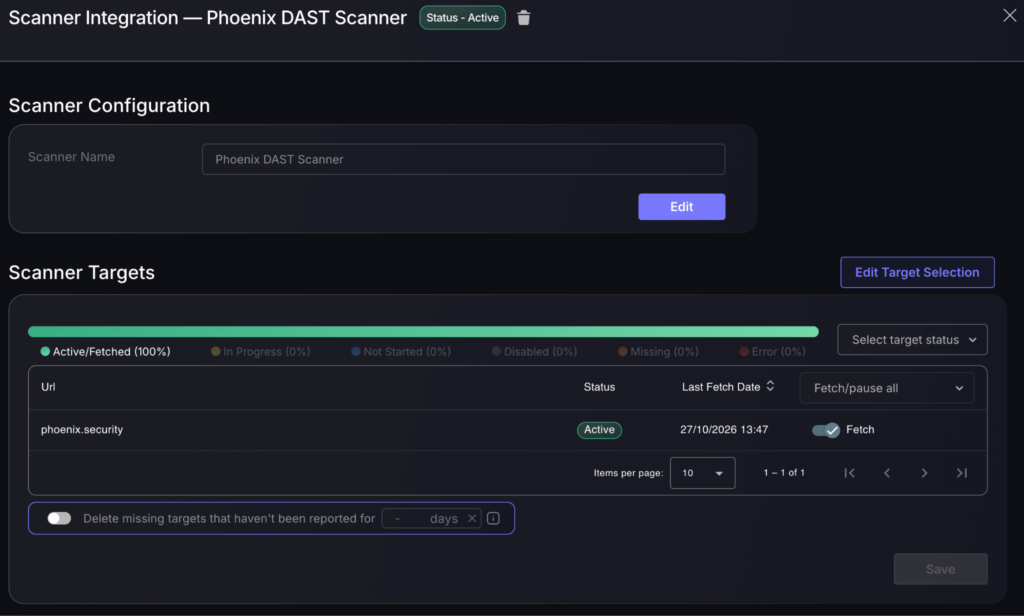
Open the created scanner integration to view its overall status and configured targets.
The page displays:
- The integration status.
- The configured target.
- The current target status.
- The last fetch date.
- Whether fetching is enabled or paused.
The available target states include:
- Active/Fetched
- In Progress
- Not Started
- Disabled
- Missing
- Error
The “Fetch” and “Fetch/pause all” controls enable or pause target processing. They should not be described as an immediate “run now” action.
6. Edit or pause a target
From the integration page, you can:
- Select Edit to change the scanner name.
- Select Edit Target Selection to change the configured targets.
- Use the Fetch control to enable or pause an individual target.
- Use Fetch/pause all to enable or pause all targets.
The page also includes an optional control for deleting missing targets that have not been reported for a specified number of days. Enable this only when you intend to remove those targets.
