
This guide explains how to use container lineage to link downstream images and services to their base image,identify inherited vulnerabilities and determine whether a newer base image includes the required fix.
1. Introduction
Container lineage provides a relationship view between base images, downstream image versions, image groups, registries and running containers. It helps security and engineering teams identify whether a vulnerability originates in a downstream image or is inherited from its base image.
1.1 What it does
You can expect container lineage to display:
- The base image used to build a downstream image.
- The downstream image versions associated with that base.
- The registry and running containers associated with an image.
- The risk level and findings attached to the base and downstream images.
- Whether a newer base image is available with the required remediation.
1.2 Intended Outcome
Phoenix associates downstream images and services with the specific base image used during the build. When a finding is inherited from that base, Phoenix identifies the relationship and can recommend rebuilding the downstream image on a newer base version that contains the fix.
2. Requirements
- Container image data imported into Phoenix Security.
- Base-image references and digests supplied by the source integration.
- Container findings and remedy data imported into Phoenix Security.
Container lineage depends on the metadata supplied by the source integration. Phoenix may be unable to establish a lineage relationship when the base-image reference or digest is unavailable.
3. View Images by Base Image
3.1 Group Container Assets
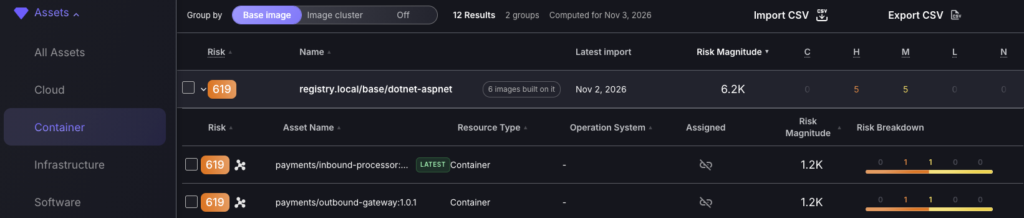
- Navigate to Assets > Container.
- Next to “Group by”, select “Base image”.
- Expand the required base-image group.
The group displays the base-image name, the number of downstream images built from it, its risk level, risk magnitude and finding counts by severity.
3.2 Review Downstream Images
Expanding the base-image group displays the associated downstream services and image versions. Use this view to identify how many images may be affected by vulnerabilities originating in the same base.
4. Inspect Container Lineage
4.1 Open the Lineage Graph
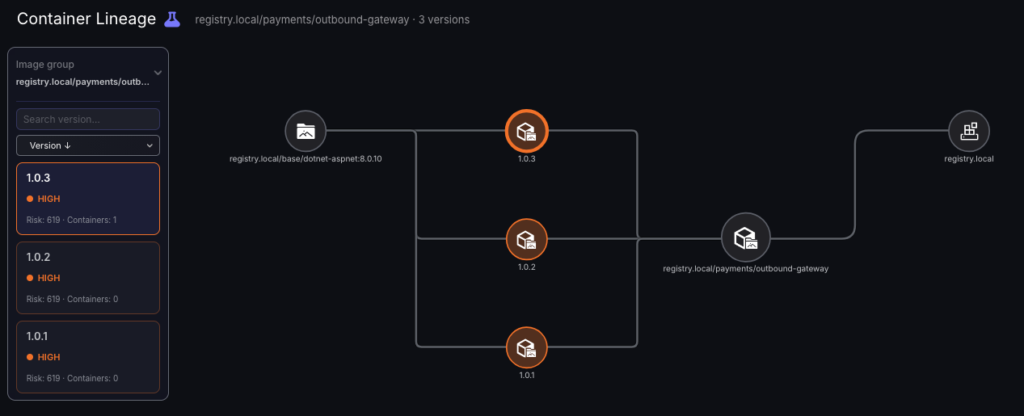
Open the lineage graph from the required image or image group, this is displayed as a cluster of connected nodes alongside the risk score. The view connects the following assets:
- Base image.
- Downstream image version.
- Downstream image group.
- Registry.
- Associated running containers.
4.2 Review an Image Group
The group-level lineage view displays every imported version in the selected image group. Select a version from the left panel to review its risk level and associated running-container count.
4.3 Confirm the Base-Image Association
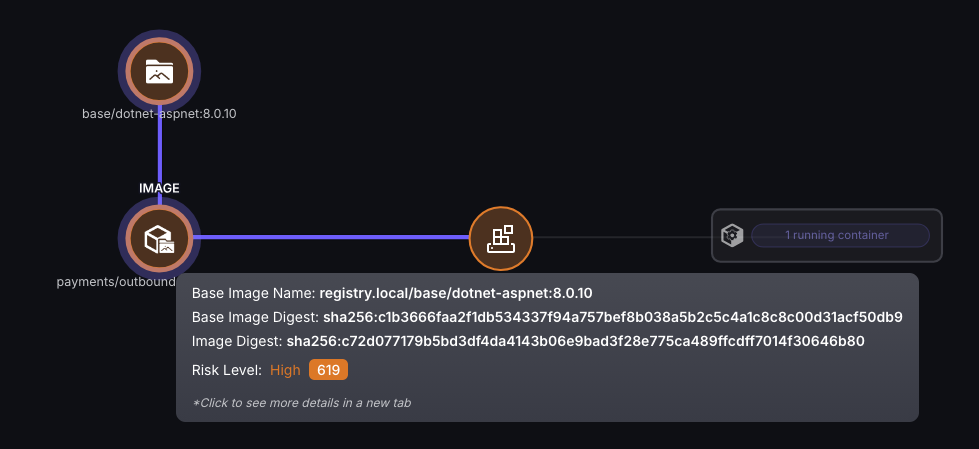
Hover over an image node to display the base-image name, base-image digest, downstream image digest and risk level.
The digest identifies the exact image content used in the relationship. This avoids relying only on a mutable image tag.
5. Review Inherited Findings
5.1 Open the Base-Image Findings
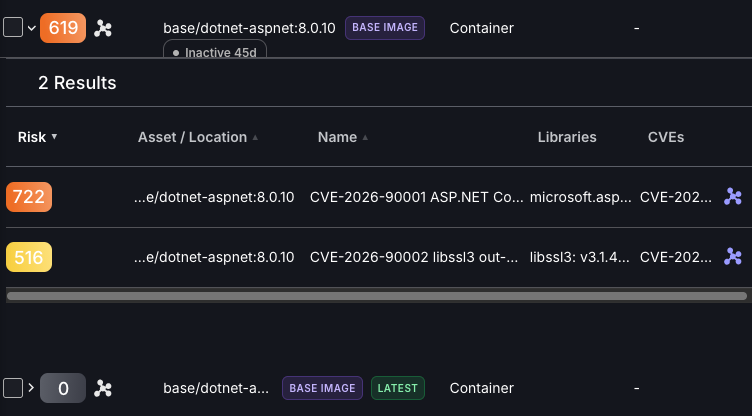
Expand the base-image asset to review its findings. The “BASE IMAGE” badge identifies the asset as a source image rather than a downstream service image.
5.2 Identify the Finding Source
- Navigate to Vulnerabilities > Remedies > Containers.
- Next to “Group by”, select “Image cluster”.
- Expand the required image group and image version.
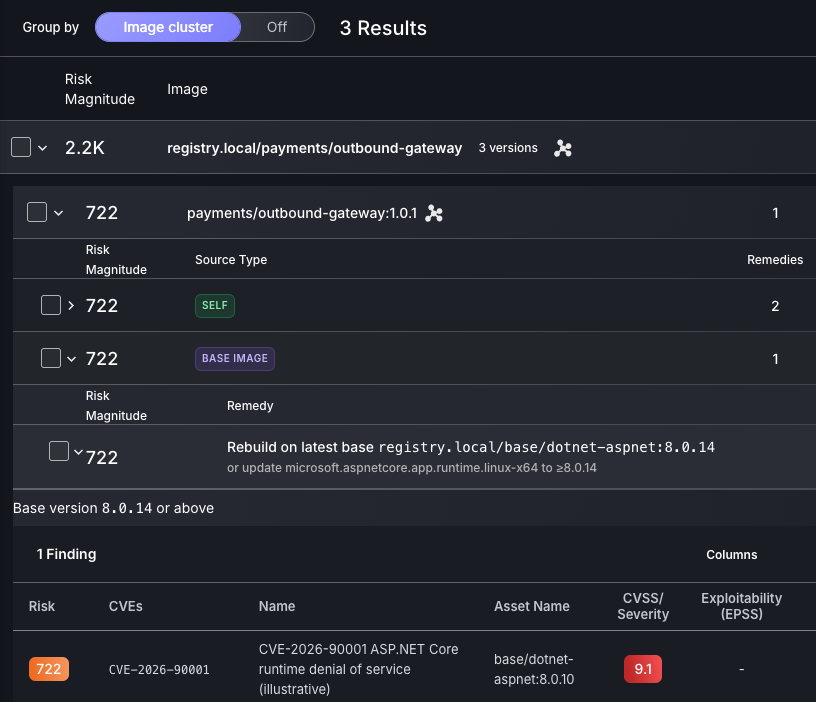
Phoenix separates remedies into the following source groups:
- SELF: findings introduced by packages or configuration in the downstream image.
- BASE IMAGE: findings inherited from the image used as the base.
This distinction indicates whether the downstream image requires a direct package change or should be rebuilt from a corrected base image.
6. Identify a Fixed Base Image
6.1 Review the Base-Image Remedy
Expand the BASE IMAGE remedy for the inherited finding. When Phoenix has identified a corrected base version, the remedy displays the base image and minimum version that should be used for the rebuild.
Where available, the remedy may also display an alternative package-level update.
6.2 Rebuild & Validate
- Update the downstream build to use the recommended base-image version or later.
- Rebuild and deploy the downstream image.
- Import or scan the rebuilt image in Phoenix Security.
- Confirm that the new image digest is associated with the corrected base-image digest.
- Verify that the inherited finding is no longer reported for the rebuilt image.
- Check whether any running containers still use an older affected image version.
A newer base image being available does not update downstream services automatically. The affected images must be rebuilt, deployed and re-scanned before the remediation can be confirmed.
7. Notes & Current Limitations
- Lineage is displayed only when the required base-image metadata is available.
- Image tags can be reassigned. Digests identify the exact image content used in the relationship.
- A base-image remediation applies only after you rebuild the downstream image using the corrected base.
- Running-container counts depend on the runtime container data imported into Phoenix.
- The container names, risk values and CVEs shown in this guide are sample
